

How to Increase Media Upload File Size in WordPress (Step-by-Step Guide)
If you’ve ever tried uploading an image, video, or PDF in WordPress and seen an error like “file exceeds the maximum upload size”, you’re not alone. This is a very common WordPress issue, especially on shared hosting.
In this guide, I’ll show you multiple safe and working ways to increase media upload file size in WordPress, even if you’re not very technical.
Why WordPress Has an Upload File Size Limit
WordPress itself does not set a strict upload limit. The limit is usually defined by:
- PHP configuration
- Server settings
- Your hosting provider
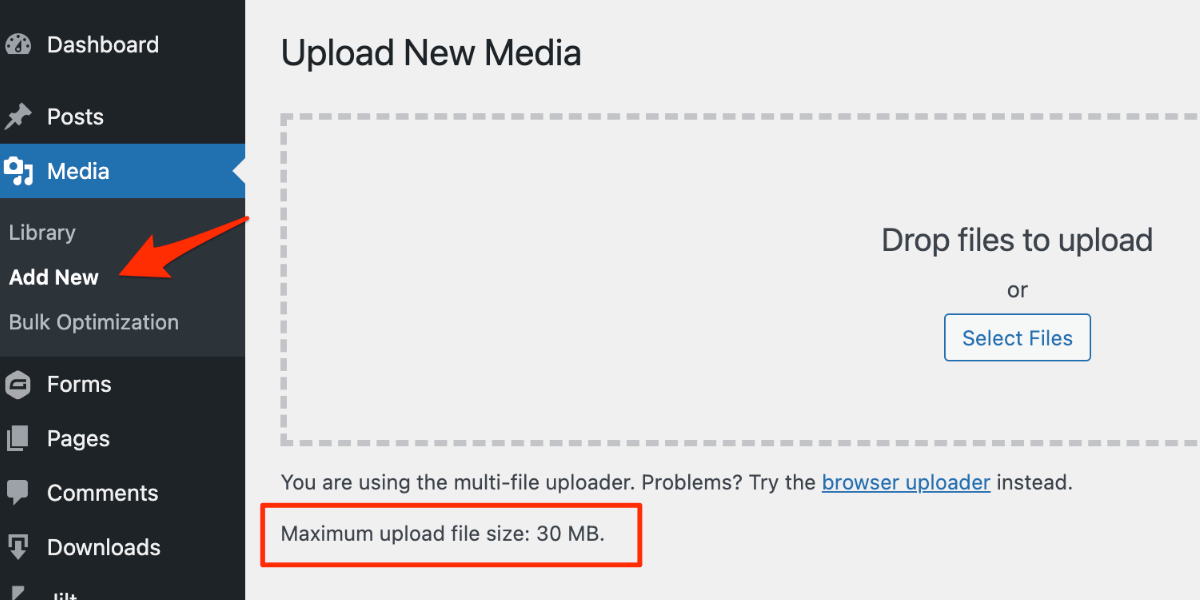
You can check your current upload limit by going to:
WordPress Dashboard → Media → Add New
Method 1: Increase Upload File Size via .htaccess
If your site is running on an Apache server, this method works well.
Steps:
- Connect to your site using FTP or File Manager
- Open the
.htaccessfile - Add the following code at the end:
php_value upload_max_filesize 256M
php_value post_max_size 256M
php_value memory_limit 256M
php_value max_execution_time 300
php_value max_input_time 300
- Save the file and refresh your WordPress dashboard.
Method 2: Increase Upload Limit Using wp-config.php
This is a safe method and works on most hosting providers.
Steps:
- Open
wp-config.php - Add this code before
/* That's all, stop editing! */
define('WP_MEMORY_LIMIT', '256M');
define('WP_MAX_MEMORY_LIMIT', '256M');
- Save the file and check the media upload limit.
Method 3: Increase Upload Size Using php.ini
If your hosting allows it, this is the most effective method.
Add or edit the php.ini file:
upload_max_filesize = 256M
post_max_size = 256M
memory_limit = 256M
max_execution_time = 300
max_input_time = 300
Then restart PHP (or wait a few minutes on shared hosting).
Method 4: Contact Your Hosting Provider (Recommended)
Some hosting providers lock PHP limits for security reasons.
In that case, simply ask them:
“Please increase my PHP upload_max_filesize and post_max_size to 256MB.”
This is often the fastest and safest solution.
Common Errors & Fixes
Changes Not Working?
- Your server might be using Nginx
- PHP values may be restricted by hosting
- Wrong file location
In such cases, only the hosting provider or a server-level fix will work.
Best Upload Size for WordPress Media
| Use Case | Recommended Size |
|---|---|
| Images | 64–128MB |
| Videos | 256MB+ |
| PDFs / Docs | 64MB |
| LMS / Course Videos | 512MB+ |
Final Thoughts
Increasing the media upload file size in WordPress is usually simple—but doing it the wrong way can break your site.
If you’re unsure or facing server restrictions, it’s best to get professional help.
Need Help with WordPress?
Having trouble increasing the media upload file size on your WordPress website?
If you’re not comfortable editing server files or your hosting provider has limitations, I can help you fix it safely and professionally.